
Connecting Perla to your clinic's website
From signup to a live chat on your site. Step by step, with screenshots and examples for every common platform.
How it works
Three things worth understanding before you paste anything.
The clinic profile is the source of truth
Hours, address, doctors, services with prices, insurers, and your hand-off rules. Perla answers patients from that data alone and invents nothing. The fuller the profile, the sharper the answers.
The key ties the widget to your clinic
Every clinic gets its own key in the form pk_live_… It's public: it sits in your site's source, and that's fine. The key grants exactly one thing — chatting as your clinic, nothing more.
The widget is isolated from your site
The chat loads in its own window (an iframe) served from getperla.eu. So your site's CSS can never break the chat, and the chat's CSS can never touch your site. One line of code and you're done.
Step by step
Screenshots from the real interface. Orange marks where to click.
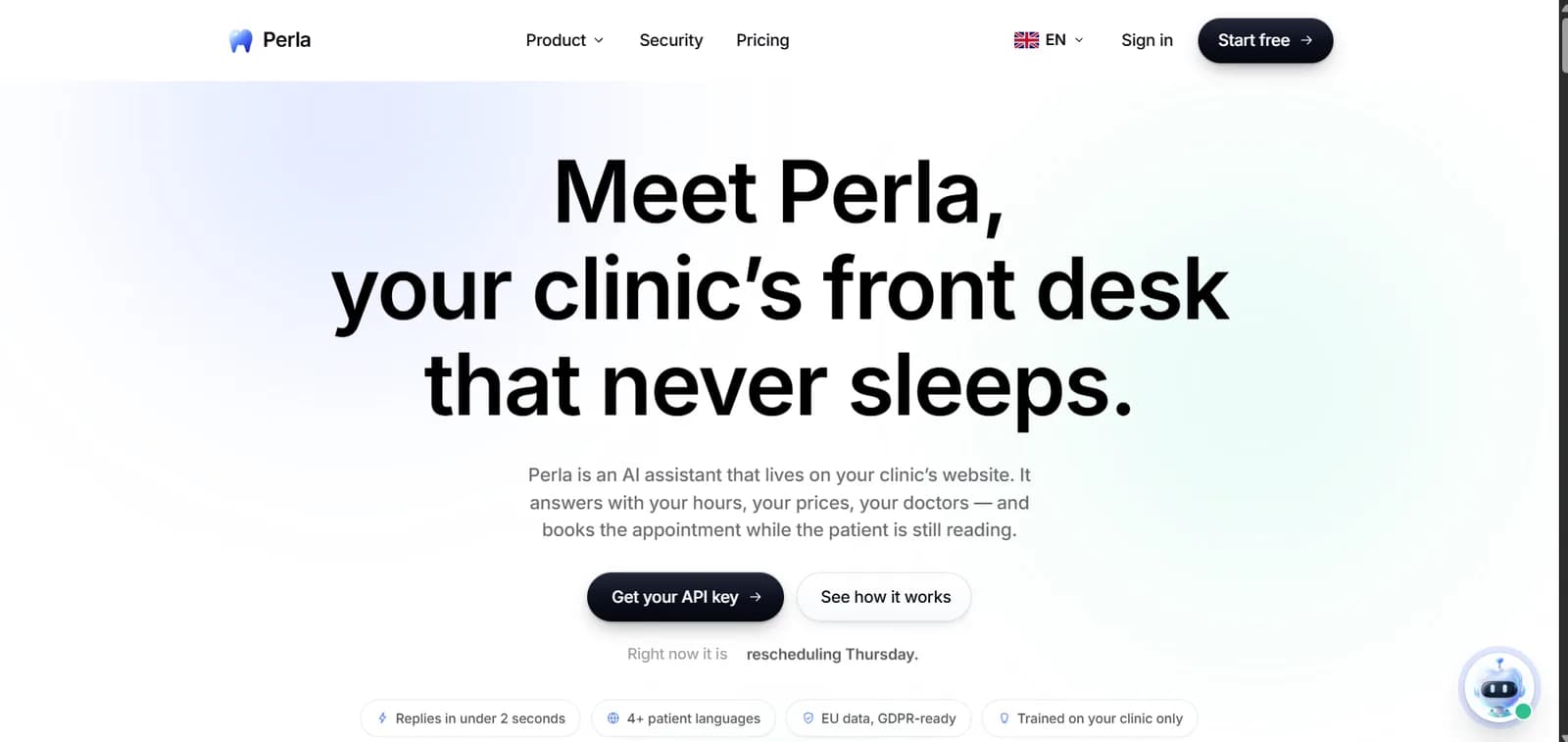
Click "Start free"
Open getperla.eu and hit the button in the top-right corner. No card needed to start.
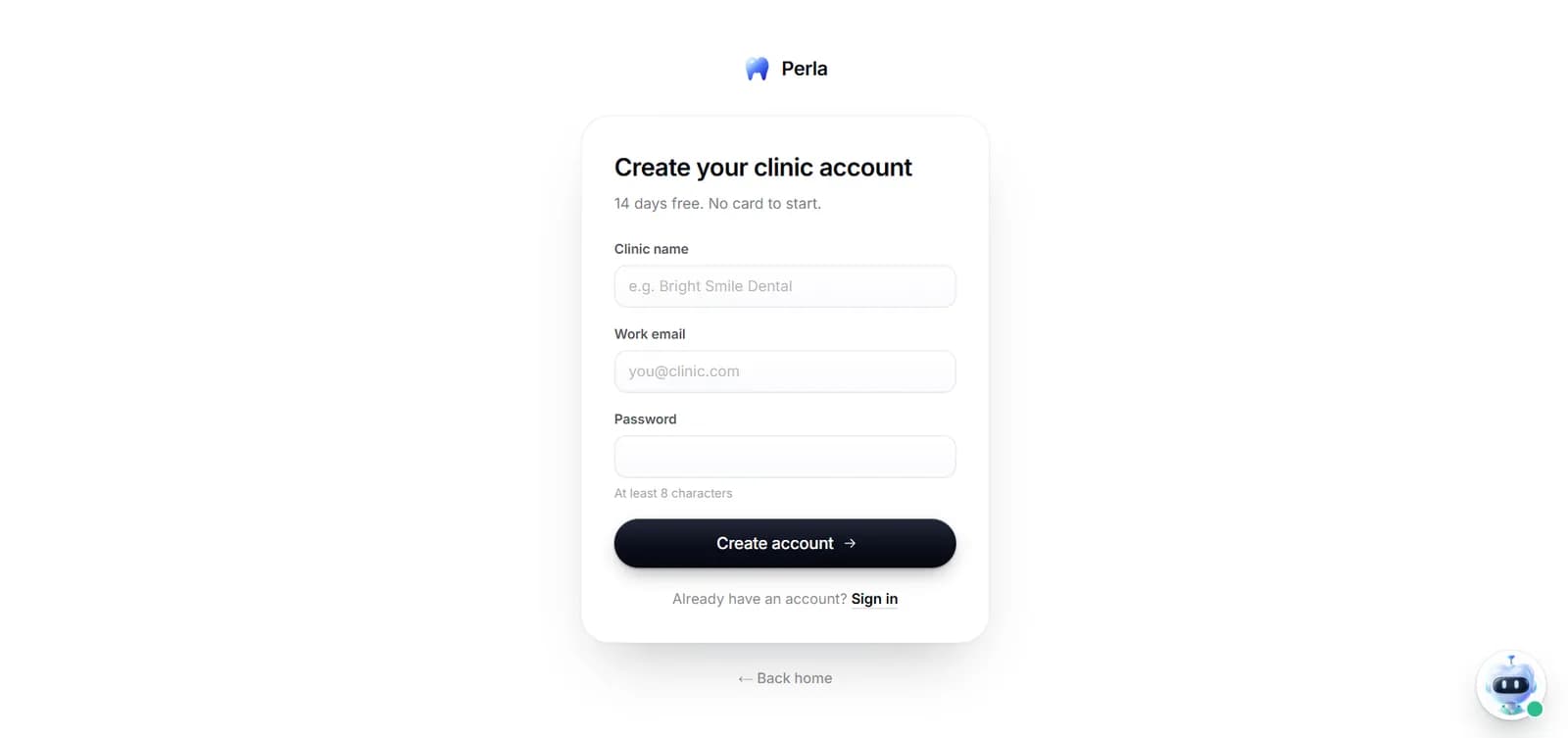
Create your clinic account
Enter your clinic name, a work email and a password of at least 8 characters. The name will appear in the chat header your patients see, so write it the way you want people to read it.
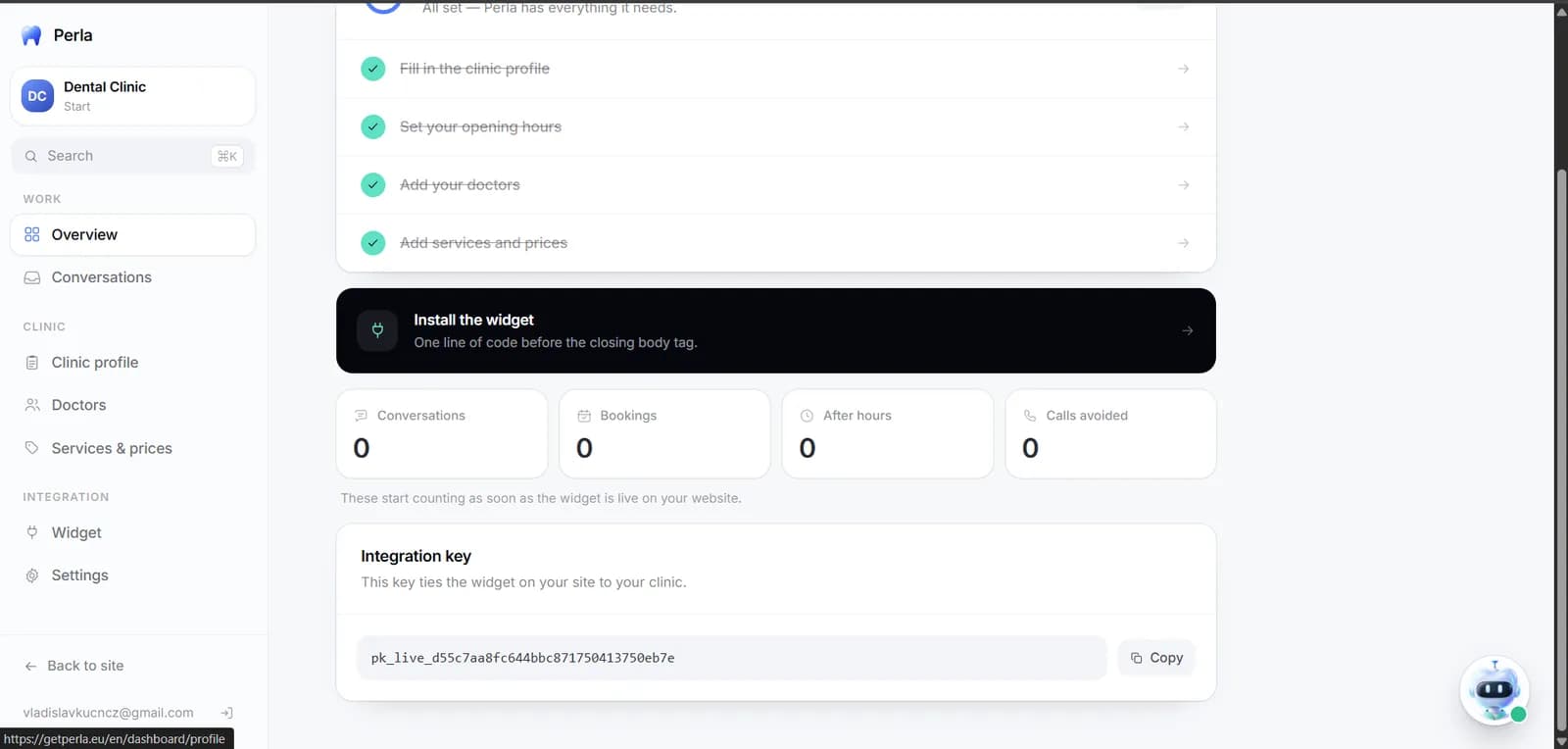
Fill in the profile and copy your key
After signing in you land on Overview. Work through the four checklist items — profile, opening hours, doctors, services and prices. Then scroll to the bottom of the page: there you'll find the Integration key block. Hit Copy.
Fill in the profile before you go live
If the price list or hours are empty, Perla will honestly tell the patient the front desk will confirm — rather than inventing a number. That's the right behaviour, but you'll get a far better result with a complete profile.
Pasting the code on your site
Pick your platform and I'll show you exactly where it goes.
Your platform
- 1Open your page file — usually index.html or a shared template (footer, layout).
- 2Paste the code directly before the closing </body> tag.
- 3If you have several pages and no shared template, add the code to each page.
- 4Save and upload the files to your host.
- If you have a shared footer file, paste it there once and the chat appears everywhere.
<!-- Perla -->
<script
  src="https://getperla.eu/widget.js"
  data-perla-key="pk_live_xxxxxxxxxxxxxxxxxxxxxxxx"
  defer
></script>
Replace pk_live_… with the key from your dashboard. The same code goes on every page of the site.
Widget options
Configured right on the script tag.
| Attribute | Required | What it does |
|---|---|---|
data-perla-key | Yes | Your clinic's key from the dashboard. The widget won't start without it. |
data-perla-lang | No | Chat interface language: uk, cs, en, ru or de. Leave it out and the first language from your clinic profile is used. It doesn't affect the replies themselves — Perla always answers in whatever language the patient writes in. |
defer | No | Keep it. The widget then loads after your main content and won't slow down the page render. |
Conversion tracking in Google Analytics
The chat runs in an iframe on Perla's own domain, so your analytics cannot see inside it. The widget therefore reports the key actions to your page itself — into dataLayer, and into gtag when it exists. Nothing needs enabling on our side; the events fire from the start.
perla_chat_opened | The patient opened the chat window |
perla_message_sent | The patient sent their first message — once per conversation, not per line |
perla_booking_request | The patient left a name and a phone number — this is the conversion |
Setting it up in GA4 through Google Tag Manager
- 1In GTM create a trigger: Trigger → New → Custom Event, with Event name perla_booking_request.
- 2Create a tag: Tag → New → Google Analytics: GA4 Event, pick your configuration tag, Event Name perla_booking_request.
- 3Attach the trigger to the tag and publish the container (Submit → Publish).
- 4In GA4 open Admin → Events and confirm the event appears after the first request, then mark it as a key event.
Bringing it into Google Ads
- 1Mark perla_booking_request as a key event in GA4 — Ads cannot see it otherwise.
- 2In Google Ads: Goals → Conversions → Import → Google Analytics 4 → choose perla_booking_request.
- 3Wait for a first real request: until one happens the event will not appear in the import list.
The events carry no personal data — no name, no phone number, no message text. Only the event name and a conversation id, so you can match a conversion to the request in your dashboard.
Checking that it works
Three minutes after pasting the code.
- 1
The button appeared
Open your clinic's site in a new tab. A round button with a robot should appear in the bottom-right corner. If you just pasted the code, hard-refresh with Ctrl+Shift+R (Cmd+Shift+R on Mac).
- 2
The chat answers with your data
Click the button and ask something that's in your profile: "How much is a cleaning?" or "Are you open on Saturday?". The answer should match what you filled in.
- 3
The conversation shows up in the dashboard
Go back to the dashboard, Conversations section. Your test chat should be there. Try booking too — give a name and phone number, and a request will appear in the same place.
What Perla can and can't do
Stated plainly, so there are no surprises in front of patients.
Works today
- Answers questions about prices, opening hours, address, doctors and insurers — from your profile
- Speaks the patient's language: Ukrainian, Czech, English, Russian, German
- Collects a booking request: name, phone and a rough time, and shows it in your dashboard
- Hands the conversation to your front desk by your own rules — acute pain or a complaint, for example
- Runs around the clock, including nights and weekends when the front desk is closed
Deliberately not
- Doesn't write into your calendar — a human confirms the request by phone
- Doesn't diagnose or recommend treatment: that's a dentist's job, not a receptionist's
- Won't quote a price that isn't in your list — it says the front desk will confirm instead
- Doesn't take payments online
Common questions
Is it safe to keep the key in my site's code?+
Yes. pk_live_… is a public key and is meant to be visible in the page source, just like a Google Maps or Stripe publishable key. It allows exactly one thing: chatting as your clinic. It cannot read your conversations, change your profile, or get into your dashboard. There's also a per-minute message cap so nobody can abuse it.
Will the widget slow my site down?+
No. The file is a few kilobytes and loads with the defer attribute — that is, after the page has already rendered for the visitor. The chat itself loads in a separate window and never blocks your site.
The widget didn't appear. What now?+
Check three things. First: the code must sit before the closing </body> tag, not in the HEAD. Second: on Tilda and Webflow you have to publish the site separately after saving the code. Third: hard-refresh the page (Ctrl+Shift+R). If that doesn't help, open the browser console (F12) and look for a message starting with [Perla].
Can I change the button colour?+
Yes. In the dashboard open the Widget section and pick a colour — either from the palette or your own. It applies to your site immediately, with no code changes.
Can I put the widget on several sites for one clinic?+
Yes, one key works across any number of pages and domains. All conversations land in the same dashboard.
Where is patient data stored?+
Conversations and booking requests are stored on servers in the European Union. Perla never asks a patient for card numbers, ID documents or medical history — only a name and phone number for the call back.
Something not adding up?
Write to us — we'll work it out together and set the widget up for you if needed.